# How to factory reset a Cisco Meraki switch

<table border="1" id="bkmrk-author-date-revision" style="border-collapse: collapse; width: 100%; height: 119.2px; border-width: 1px; border-color: rgb(0, 0, 0);"><colgroup><col style="width: 33.3333%;"></col><col style="width: 33.3333%;"></col><col style="width: 33.3333%;"></col></colgroup><tbody><tr style="height: 29.8px;"><td style="height: 29.8px; background-color: rgb(194, 224, 244); border-color: rgb(0, 0, 0);">**<span style="color: rgb(0, 0, 0);">Author</span>**  
</td><td style="height: 29.8px; background-color: rgb(194, 224, 244); border-color: rgb(0, 0, 0);">**<span style="color: rgb(0, 0, 0);">Date</span>**  
</td><td style="height: 29.8px; background-color: rgb(194, 224, 244); border-color: rgb(0, 0, 0);">**<span style="color: rgb(0, 0, 0);">Revision</span>**  
</td></tr><tr style="height: 29.8px;"><td style="height: 29.8px; border-color: rgb(0, 0, 0);">Samuel Knoppe</td><td style="height: 29.8px; border-color: rgb(0, 0, 0);">4/9/2024</td><td style="height: 29.8px; border-color: rgb(0, 0, 0);">1.0</td></tr></tbody></table>

<table border="1" id="bkmrk-related-product-%28if-" style="border-collapse: collapse; width: 112.738%; height: 199.4px; border-width: 1px; border-color: rgb(0, 0, 0);"><colgroup><col style="width: 22.0501%;"></col><col style="width: 77.9499%;"></col></colgroup><tbody><tr style="height: 29.8px;"><td style="background-color: rgb(194, 224, 244); height: 29.8px; border-color: rgb(0, 0, 0);">**<span style="color: rgb(0, 0, 0);">Related product (if any):  
</span>**</td><td style="height: 29.8px; border-color: rgb(0, 0, 0);">Cisco Meraki MS120, MS130, MS125, MS210, MS225, MS250, MS350, MS355, MS390, MS410, MS425, MS450</td></tr><tr style="height: 80.2px;"><td style="background-color: rgb(194, 224, 244); height: 80.2px; border-color: rgb(0, 0, 0);">**<span style="color: rgb(0, 0, 0);">Description:</span>**</td><td style="height: 80.2px; border-color: rgb(0, 0, 0);">Shows the steps on how to factory reset a Cisco Meraki MS-series network switch.</td></tr><tr style="height: 29.8px;"><td style="background-color: rgb(194, 224, 244); height: 29.8px; border-color: rgb(0, 0, 0);">**<span style="color: rgb(0, 0, 0);">Symptoms:  
</span>**</td><td style="height: 29.8px; border-color: rgb(0, 0, 0);">N/A</td></tr><tr style="height: 29.8px;"><td style="background-color: rgb(194, 224, 244); height: 29.8px; border-color: rgb(0, 0, 0);">**<span style="color: rgb(0, 0, 0);">Cause:  
</span>**</td><td style="height: 29.8px; border-color: rgb(0, 0, 0);">N/A</td></tr><tr><td style="background-color: rgb(194, 224, 244); border-color: rgb(0, 0, 0);">**<span style="color: rgb(0, 0, 0);">Files Needed:  
</span>**</td><td style="border-color: rgb(0, 0, 0);">N/A</td></tr><tr style="height: 29.8px;"><td style="background-color: rgb(194, 224, 244); height: 29.8px; border-color: rgb(0, 0, 0);">**<span style="color: rgb(0, 0, 0);">Steps to Correct:  
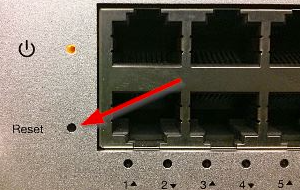
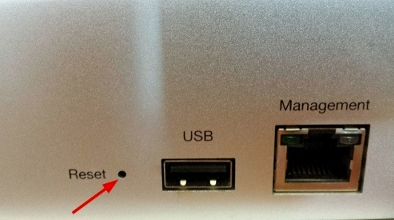
</span>**</td><td style="height: 29.8px; border-color: rgb(0, 0, 0);">1. Find a paper clip and locate the reset hole on the network switch.
2. Hold down the reset button for 10-15 seconds. The LED on the device will turn off.
3. The device will reboot and reset. It may take up to 5-10 minutes for the device to provision.

[![image.png](https://help.basedment.org/uploads/images/gallery/2024-04/scaled-1680-/PVewV8K1uTfwF5wq-YxHimage.png)](https://help.basedment.org/uploads/images/gallery/2024-04/PVewV8K1uTfwF5wq-YxHimage.png)
[![image.png](https://help.basedment.org/uploads/images/gallery/2024-04/scaled-1680-/46WRBrm5WP5cXjMm-jsfimage.png)](https://help.basedment.org/uploads/images/gallery/2024-04/46WRBrm5WP5cXjMm-jsfimage.png)
</td></tr></tbody></table>