# Chris Titus Tech's WinUtil Powershell Script

<table border="1" id="bkmrk-author-date-revision" style="border-collapse: collapse; width: 100%; height: 119.2px; border-width: 1px; border-color: rgb(0, 0, 0);"><colgroup><col style="width: 33.3333%;"></col><col style="width: 33.3333%;"></col><col style="width: 33.3333%;"></col></colgroup><tbody><tr style="height: 29.8px;"><td style="height: 29.8px; background-color: rgb(194, 224, 244); border-color: rgb(0, 0, 0);">**<span style="color: rgb(0, 0, 0);">Author</span>**  
</td><td style="height: 29.8px; background-color: rgb(194, 224, 244); border-color: rgb(0, 0, 0);">**<span style="color: rgb(0, 0, 0);">Date</span>**  
</td><td style="height: 29.8px; background-color: rgb(194, 224, 244); border-color: rgb(0, 0, 0);">**<span style="color: rgb(0, 0, 0);">Revision</span>**  
</td></tr><tr style="height: 29.8px;"><td style="height: 29.8px; border-color: rgb(0, 0, 0);">Caleb Brendel  
</td><td style="height: 29.8px; border-color: rgb(0, 0, 0);">04/08/2024  
</td><td style="height: 29.8px; border-color: rgb(0, 0, 0);">1.0  
</td></tr></tbody></table>

<table border="1" id="bkmrk-related-product-%28if-" style="border-collapse: collapse; width: 112.738%; height: 3241.35px; border-width: 1px; border-color: rgb(0, 0, 0);"><colgroup><col style="width: 22.0501%;"></col><col style="width: 77.9499%;"></col></colgroup><tbody><tr style="height: 29.8px;"><td style="background-color: rgb(194, 224, 244); height: 29.8px; border-color: rgb(0, 0, 0);">**<span style="color: rgb(0, 0, 0);">Related product (if any):  
</span>**</td><td style="height: 29.8px; border-color: rgb(0, 0, 0);">  
</td></tr><tr style="height: 80.2px;"><td style="background-color: rgb(194, 224, 244); height: 80.2px; border-color: rgb(0, 0, 0);">**<span style="color: rgb(0, 0, 0);">Description:</span>**</td><td style="height: 80.2px; border-color: rgb(0, 0, 0);">This script is used to remove "bloatware" on Windows so it can help perform better.  
</td></tr><tr style="height: 29.8px;"><td style="background-color: rgb(194, 224, 244); height: 29.8px; border-color: rgb(0, 0, 0);">**<span style="color: rgb(0, 0, 0);">Symptoms:  
</span>**</td><td style="height: 29.8px; border-color: rgb(0, 0, 0);">  
</td></tr><tr style="height: 29.8px;"><td style="background-color: rgb(194, 224, 244); height: 29.8px; border-color: rgb(0, 0, 0);">**<span style="color: rgb(0, 0, 0);">Cause:  
</span>**</td><td style="height: 29.8px; border-color: rgb(0, 0, 0);">Wanting to remove Microsoft Store-related apps/services to improve performance on your system.</td></tr><tr style="height: 29.8px;"><td style="background-color: rgb(194, 224, 244); border-color: rgb(0, 0, 0); height: 29.8px;">**<span style="color: rgb(0, 0, 0);">Files Needed:  
</span>**</td><td style="border-color: rgb(0, 0, 0); height: 29.8px;">No files are needed except for the script to run: **irm https://christitus.com/win | iex**</td></tr><tr style="height: 3041.95px;"><td style="background-color: rgb(194, 224, 244); height: 3041.95px; border-color: rgb(0, 0, 0);">**<span style="color: rgb(0, 0, 0);">Steps to Correct:  
</span>**</td><td style="height: 3041.95px; border-color: rgb(0, 0, 0);">Hit your Windows key on your keyboard and type in powershell.

[![image.png](https://help.basedment.org/uploads/images/gallery/2024-04/scaled-1680-/yypimage.png)](https://help.basedment.org/uploads/images/gallery/2024-04/yypimage.png)  
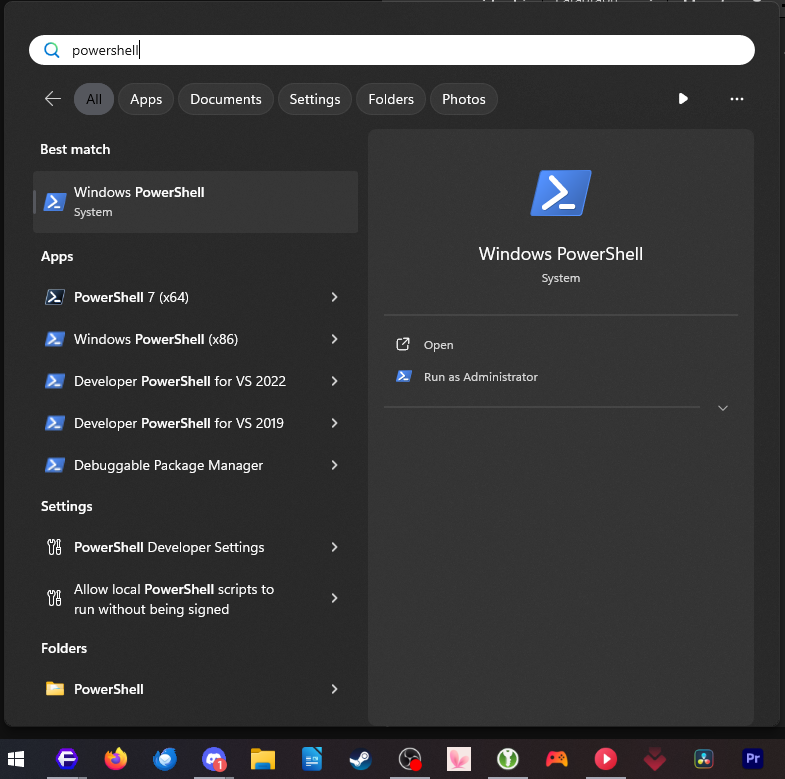
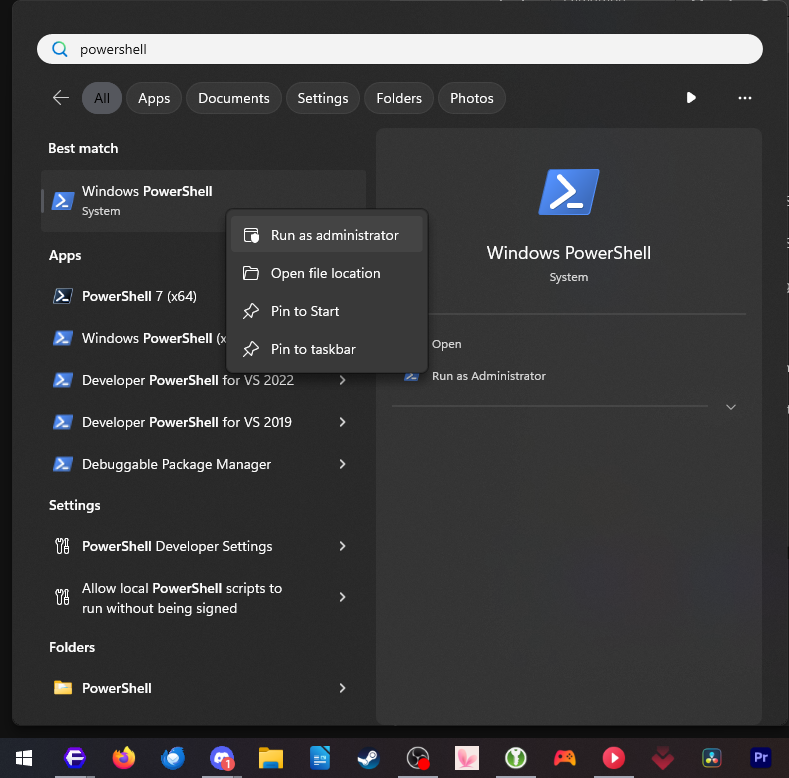
Right-click and run as administrator.

[![image.png](https://help.basedment.org/uploads/images/gallery/2024-04/scaled-1680-/gb3image.png)](https://help.basedment.org/uploads/images/gallery/2024-04/gb3image.png)  
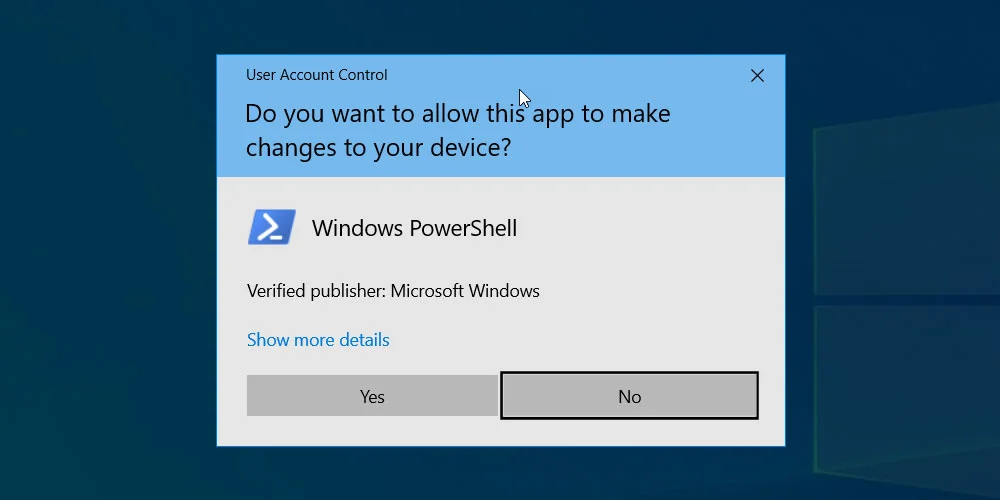
If you get a UAC prompt to allow Powershell to run, press Yes to accept it.

[![image.png](https://help.basedment.org/uploads/images/gallery/2024-04/scaled-1680-/hFZimage.png)](https://help.basedment.org/uploads/images/gallery/2024-04/hFZimage.png)  
Copy ( Ctrl +C ) the following command: **irm https://christitus.com/win | iex** Now click into Powershell and paste the command you just copied ( Ctrl + V )

[![image.png](https://help.basedment.org/uploads/images/gallery/2024-04/scaled-1680-/Ywbimage.png)](https://help.basedment.org/uploads/images/gallery/2024-04/Ywbimage.png)  
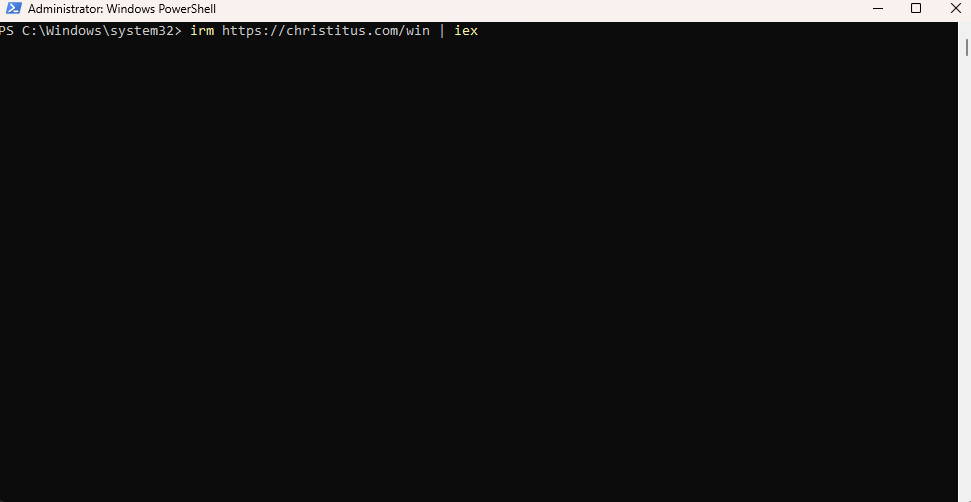
Press Enter on your keyboard now.  
The script might start to install chocolatey (a dependency for the script), and let it do its thing. If it asks any prompts, say yes to all of them.

Once the utility is opened, you should have a window like this:

[![image.png](https://help.basedment.org/uploads/images/gallery/2024-04/scaled-1680-/gbPimage.png)](https://help.basedment.org/uploads/images/gallery/2024-04/gbPimage.png)  
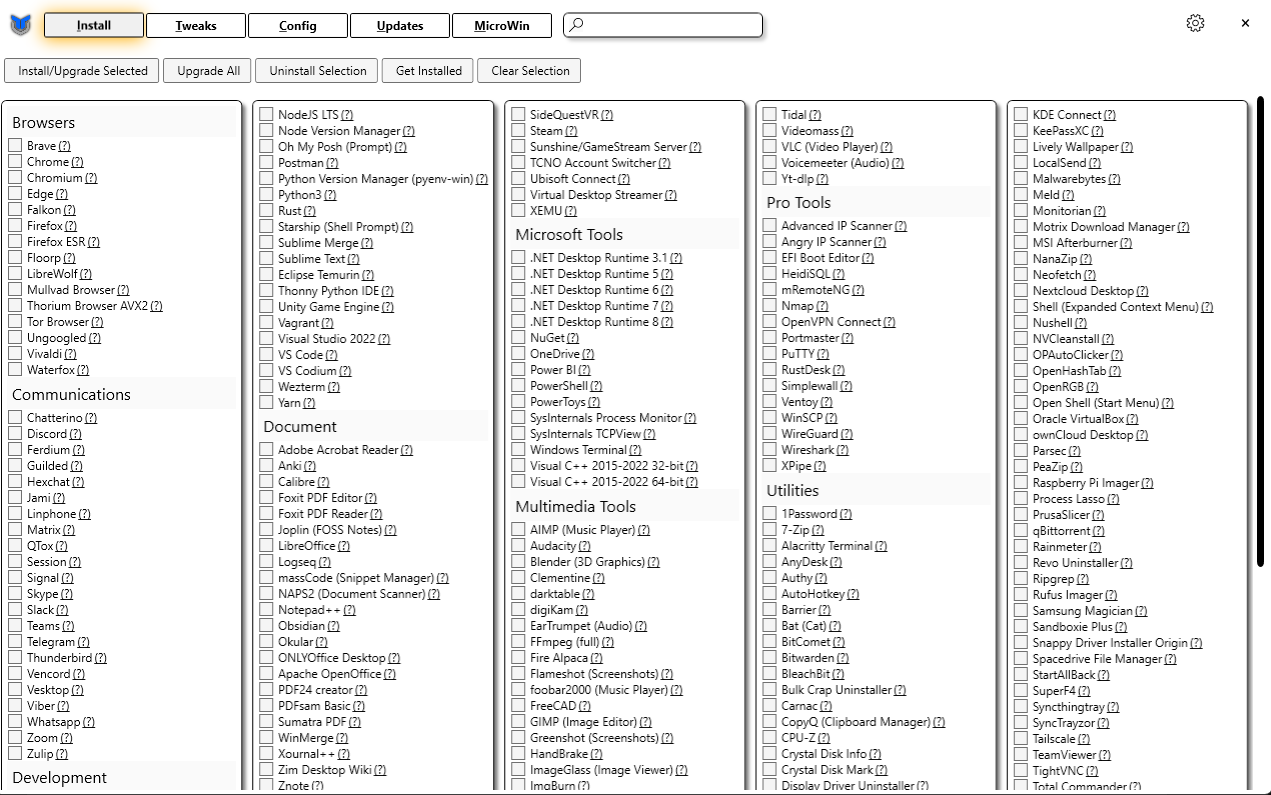
Now that we are here, let's go into the Tweaks tab in the top left of the window.

Once in here, select the options I have in the screenshot below:

[![image.png](https://help.basedment.org/uploads/images/gallery/2024-04/scaled-1680-/4zGimage.png)](https://help.basedment.org/uploads/images/gallery/2024-04/4zGimage.png)  
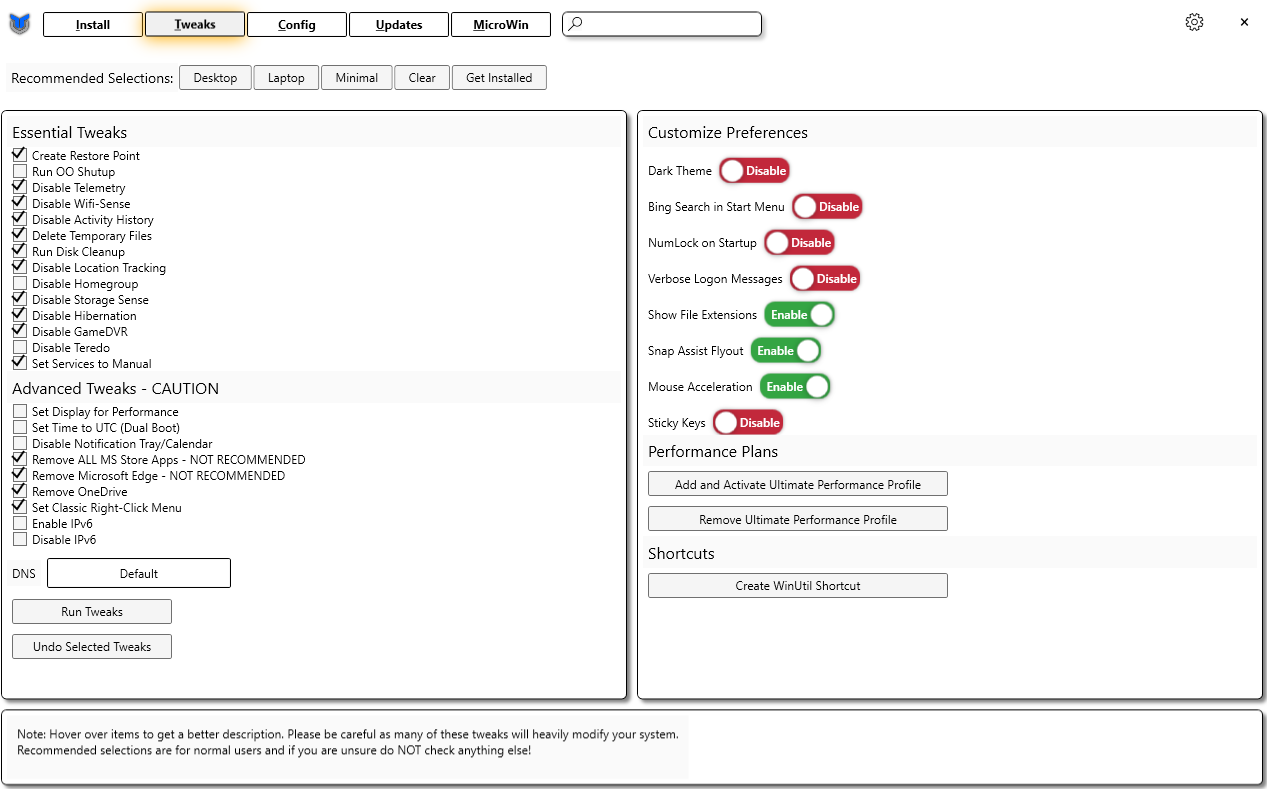
Click Run Tweaks now and let it do its thing! That's it! You're all set now and got some unnecessary tracking &amp; bloatware bs off your Windows 10/11 PC!

</td></tr></tbody></table>