# How to Setup Auto Login for Windows 10 without netplwiz (non-licensed Windows 10)

<table border="1" id="bkmrk-author-date-revision" style="border-collapse: collapse; width: 100%; height: 119.2px; border-width: 1px; border-color: rgb(0, 0, 0);"><colgroup><col style="width: 33.3333%;"></col><col style="width: 33.3333%;"></col><col style="width: 33.3333%;"></col></colgroup><tbody><tr style="height: 29.8px;"><td style="height: 29.8px; background-color: rgb(194, 224, 244); border-color: rgb(0, 0, 0);">**<span style="color: rgb(0, 0, 0);">Author</span>**  
</td><td style="height: 29.8px; background-color: rgb(194, 224, 244); border-color: rgb(0, 0, 0);">**<span style="color: rgb(0, 0, 0);">Date</span>**  
</td><td style="height: 29.8px; background-color: rgb(194, 224, 244); border-color: rgb(0, 0, 0);">**<span style="color: rgb(0, 0, 0);">Revision</span>**  
</td></tr><tr style="height: 29.8px;"><td style="height: 29.8px; border-color: rgb(0, 0, 0);">Caleb Brendel  
</td><td style="height: 29.8px; border-color: rgb(0, 0, 0);">04/08/2024  
</td><td style="height: 29.8px; border-color: rgb(0, 0, 0);">1.0  
</td></tr></tbody></table>

<table border="1" id="bkmrk-related-product-%28if-" style="border-collapse: collapse; width: 112.738%; height: 251.6px; border-width: 1px; border-color: rgb(0, 0, 0);"><colgroup><col style="width: 22.0501%;"></col><col style="width: 77.9499%;"></col></colgroup><tbody><tr style="height: 29.8px;"><td style="background-color: rgb(194, 224, 244); height: 29.8px; border-color: rgb(0, 0, 0);">**<span style="color: rgb(0, 0, 0);">Related product (if any):  
</span>**</td><td style="height: 29.8px; border-color: rgb(0, 0, 0);">  
</td></tr><tr style="height: 80.2px;"><td style="background-color: rgb(194, 224, 244); height: 80.2px; border-color: rgb(0, 0, 0);">**<span style="color: rgb(0, 0, 0);">Description:</span>**</td><td style="height: 80.2px; border-color: rgb(0, 0, 0);">Registry hack meant for Windows 10/11 in cases where you don't have a copy of Windows.

Example: a Windows VM

</td></tr><tr style="height: 29.8px;"><td style="background-color: rgb(194, 224, 244); height: 29.8px; border-color: rgb(0, 0, 0);">**<span style="color: rgb(0, 0, 0);">Symptoms:  
</span>**</td><td style="height: 29.8px; border-color: rgb(0, 0, 0);">N/A  
</td></tr><tr style="height: 46.6px;"><td style="background-color: rgb(194, 224, 244); height: 46.6px; border-color: rgb(0, 0, 0);">**<span style="color: rgb(0, 0, 0);">Cause:  
</span>**</td><td style="height: 46.6px; border-color: rgb(0, 0, 0);">This is used in cases where netplwiz is unusable on Windows 10/11. This can happen if you are on an unlicensed copy of Windows. This registry hack will bypass that.  
</td></tr><tr style="height: 29.8px;"><td style="background-color: rgb(194, 224, 244); border-color: rgb(0, 0, 0); height: 29.8px;">**<span style="color: rgb(0, 0, 0);">Files Needed:  
</span>**</td><td style="border-color: rgb(0, 0, 0); height: 29.8px;">N/A</td></tr><tr style="height: 35.4px;"><td style="background-color: rgb(194, 224, 244); height: 35.4px; border-color: rgb(0, 0, 0);">**<span style="color: rgb(0, 0, 0);">Steps to Correct:  
</span>**</td><td style="height: 35.4px; border-color: rgb(0, 0, 0);">Typically people will have licensed Windows machines. It's not like they can't operate fine without the license anyway...lol. So, here is the method I use for clients when it comes to registry hacks for auto-signing into a local account on Windows 10!

Open Registry Editor by searching it in the Windows search in the bottom left of your taskbar:

[![image.png](https://help.basedment.org/uploads/images/gallery/2024-04/scaled-1680-/XiSimage.png)](https://help.basedment.org/uploads/images/gallery/2024-04/XiSimage.png)  

After opening Registry Editor, nagivate to: **HKEY\_LOCAL\_MACHINE\\SOFTWARE\\Microsoft\\Windows NT\\CurrentVersion\\Winlogon**

[![image.png](https://help.basedment.org/uploads/images/gallery/2024-04/scaled-1680-/rDfimage.png)](https://help.basedment.org/uploads/images/gallery/2024-04/rDfimage.png)

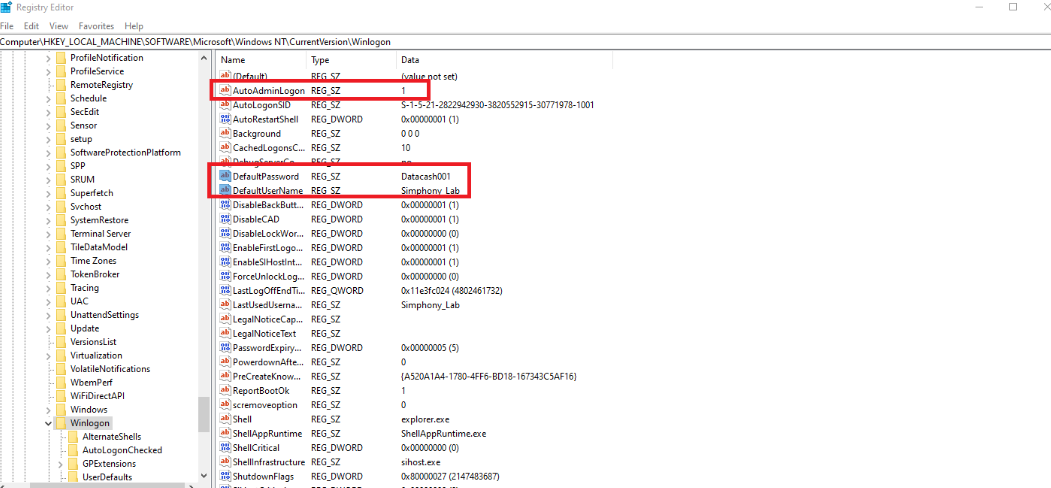
Now add 3 string values and rename them all to the following:  
1\. AutoAdminLogon (set the value on it to 1 by double-clicking on the string)  
2\. DefaultUsername (type in whatever the local username of your pc is in this string)

You can check what username you use on your pc by going into Computer Management. You can search this down below in the Windows search bar.

[![image.png](https://help.basedment.org/uploads/images/gallery/2024-04/scaled-1680-/sWqimage.png)](https://help.basedment.org/uploads/images/gallery/2024-04/sWqimage.png)

Inside of Computer Management, select Local Users and Groups.

[![image.png](https://help.basedment.org/uploads/images/gallery/2024-04/scaled-1680-/Tgiimage.png)](https://help.basedment.org/uploads/images/gallery/2024-04/Tgiimage.png)
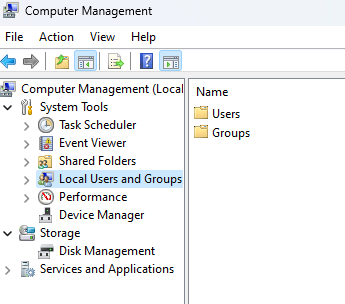
Now double click on Users.

[![image.png](https://help.basedment.org/uploads/images/gallery/2024-04/scaled-1680-/YTgimage.png)](https://help.basedment.org/uploads/images/gallery/2024-04/YTgimage.png)
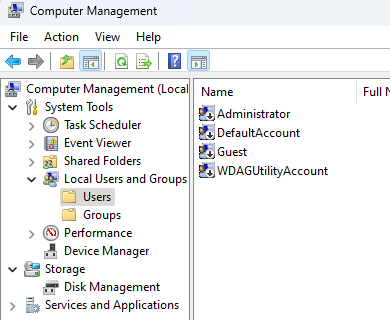
Administrator is a good example here so that's what you would end up putting in the DefaultUsername string in the Registry Editor.  
3\. DefaultPassword (type the password for whatever account you use here in this string)  
  
This is what you should have now. My username and password is different compared to yours though.

[![image.png](https://help.basedment.org/uploads/images/gallery/2024-04/scaled-1680-/iyVimage.png)](https://help.basedment.org/uploads/images/gallery/2024-04/iyVimage.png)Test by rebooting now and you should be all up &amp; working now!
</td></tr></tbody></table>